
ChatGPT Voice Interrupting? The Fix
ChatGPT's Advanced Voice Mode cutting you off or interrupting over background noise? Here's exactly why — and the fix that worked.
Disclosure: This post may contain affiliate links and display advertising. If you purchase through a link on this page, we may earn a commission at no extra cost to you. See our full disclaimer for details.
I'll show you exactly how I use AI Tools to find outdated content, get better insights, and update posts that rank.
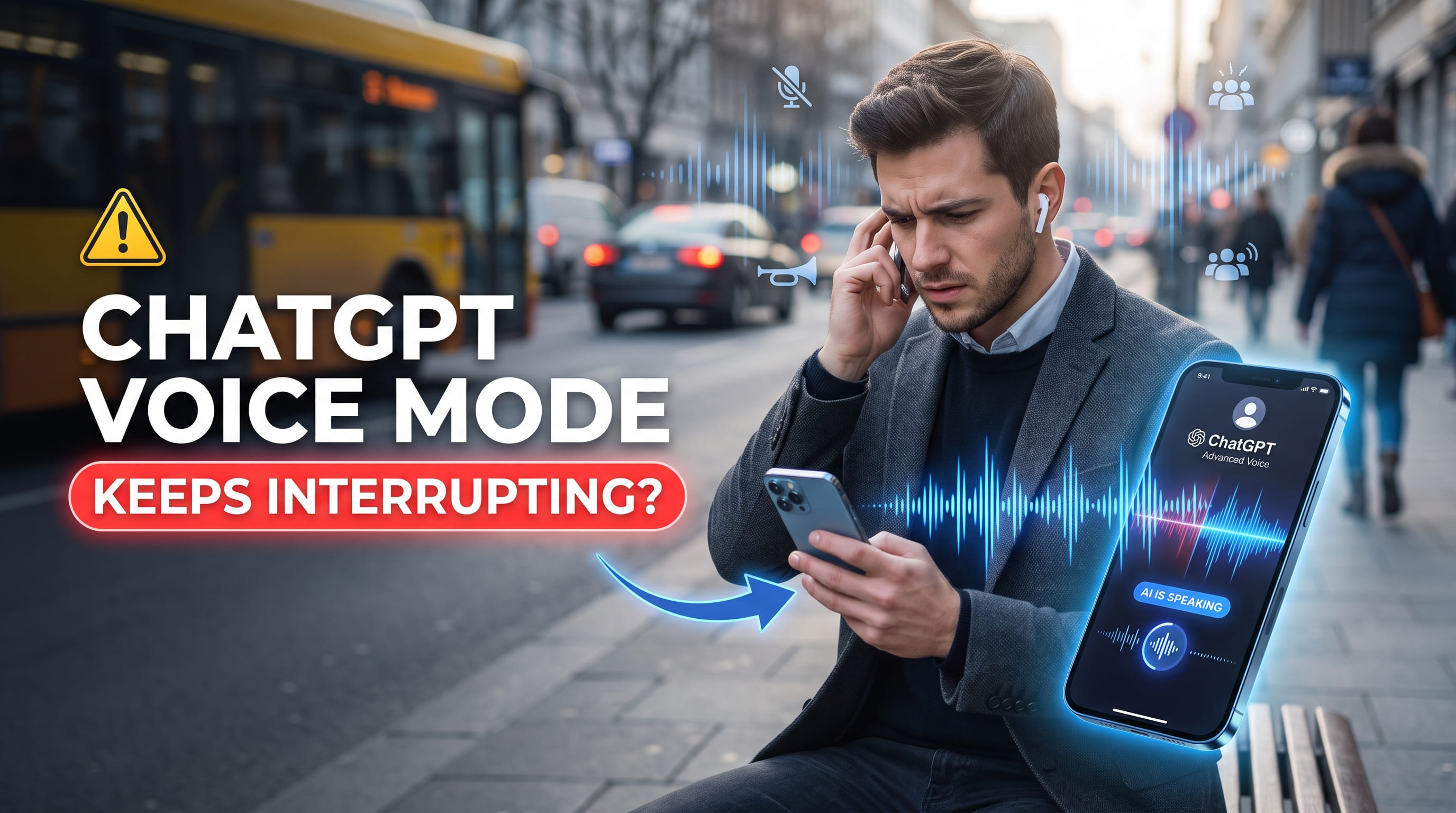
I was walking to grab coffee, talking through a work problem with ChatGPT's Advanced Voice Mode in my ear, and it cut me off mid-sentence three times in two minutes. Not because I paused. Because a bus went by.
If you've had ChatGPT jump in over you while you're still talking, you're nowhere near alone in this. It's one of the most complained-about quirks of Advanced Voice Mode, and it happens to people on quiet laptops and noisy sidewalks alike.
The good news is that this isn't some deep, unfixable flaw. It's a specific, known behavior with specific fixes, and most people get it sorted in under ten minutes.
Why ChatGPT Advanced Voice Mode Keeps Cutting You Off
Advanced Voice Mode doesn't work like the old voice feature, where you spoke, it transcribed, then it replied. It listens continuously and has to guess, in real time, when you've actually finished your thought.
That guess is based on gaps in sound. A pause, a change in tone, silence after a sentence — all of it signals "okay, they're done, my turn."
The problem is that background noise doesn't know it's not supposed to count. A door closing, a dog barking, someone talking near you, or even a slightly weird echo can look like a pause or a break in your speech to the model.
On top of that, OpenAI has been upfront that Advanced Voice Mode is built mainly for one-on-one conversations. It's not fully optimized for speakerphone use, in-car Bluetooth, or rooms with multiple people talking, and all three of those situations make interruptions far more likely.
So it's not that your ChatGPT app is broken. It's listening exactly as designed — the design just gets confused by noisy, echoey, or crowded audio.
Step 1: Ditch Speakerphone and Car Bluetooth, Use Headphones Instead
This alone fixes it for a huge number of people, and it's the first thing worth trying before anything more technical.
Speakerphone and car Bluetooth systems tend to pick up echo, road noise, and the AI's own voice bouncing back into the mic. Advanced Voice Mode reads that bounce-back as you interrupting yourself.
- Plug in wired headphones, or use AirPods/earbuds with a built-in mic
- Avoid your laptop or phone's speaker and mic at the same time
- Skip car Bluetooth for voice chats until this is fixed on your end
Headphones separate what ChatGPT is saying from what it's trying to listen to, which removes a huge chunk of the confusion.
Step 2: Turn On Voice Isolation (iPhone) or a Noise-Suppression Mic (Android)
If you're still getting cut off with headphones in, the next move is tightening up what your mic actually picks up.
On iPhone:
- Open Control Center during your voice conversation
- Tap Mic Mode
- Select Voice Isolation
This tells your phone to prioritize your voice and suppress everything around it, which is exactly the kind of noise that trips up Advanced Voice Mode.
On Android:
Android doesn't have a built-in mic sensitivity or noise-suppression toggle the way iPhone does. Your best options here are:
- Use earbuds with active noise cancellation and a noise-isolating mic (many ANC earbuds handle this well)
- Try a reputable third-party mic/noise-suppression app if your environment is consistently loud
- Move somewhere quieter rather than fighting the hardware
It's a genuine gap on Android right now, so leaning on good headphones does more of the work here than any setting will.
Step 3: Tell ChatGPT to Wait Before It Responds
This one surprises people, but it works, and it comes straight from how OpenAI says the feature is meant to be used.
At the start of your conversation, just say something like: "Wait until I ask you to respond." Advanced Voice Mode can hold off jumping in when you explicitly ask it to, though long pauses or loud noise can still override that instruction occasionally.
If you want this behavior every single time without repeating yourself, you can bake it into your permanent settings instead:
- Open ChatGPT and go to Settings
- Tap Personalization, then Custom Instructions
- Under "How would you like ChatGPT to respond," add a line telling it to only acknowledge you briefly during voice chats and wait until you say its name before giving a full answer
- Save
This effectively hands you the "hold" button that a lot of users have been asking OpenAI to bring back.
Step 4: Find a Quieter Spot and Turn Your Volume Up
Simple, but it's skipped constantly because it feels too obvious to be the actual fix.
- Step away from traffic, fans, TVs, or other conversations happening nearby
- Turn your device volume up so ChatGPT's voice comes through clearly instead of getting muddied by ambient sound
- If you're at home, closing a door or window can make a bigger difference than it sounds like it would
A quieter room doesn't just help ChatGPT hear you better — it also means there's less ambient noise for it to mistake for you pausing.
Step 5: Make Sure Your App Is Actually Updated
OpenAI has openly acknowledged interruptions as a real problem and pushed updates specifically aimed at reducing how often the assistant jumps in, particularly around long pauses. If you're running an outdated version of the app, you're likely missing those improvements entirely.
- Check the App Store or Google Play for a pending ChatGPT update
- Fully close and reopen the app after updating, don't just leave it running in the background
- If you're on desktop, refresh the browser tab or restart the app
This is one of those fixes that costs nothing to check and occasionally solves the whole problem on its own.
Step 6: Turn Off Low Power Mode and Background App Restrictions
This one's quieter than the others, but it trips people up more than you'd expect.
On iPhone, Low Power Mode can throttle background processes in ways that disrupt the microphone mid-conversation. On Android, aggressive battery or background app restrictions on the ChatGPT app can do the same thing.
- iPhone: turn off Low Power Mode before starting a voice session
- Android: go into your phone's battery settings and make sure ChatGPT isn't restricted in the background
- Reopen the app fresh after changing either setting
Neither of these causes noise-related interruptions directly, but they can cause the kind of audio hiccups that make the noise problem worse.
What Didn't Actually Help (So You Can Skip It)
- Restarting the phone by itself — didn't change anything when the real issue was speakerphone echo, not the device.
- Switching Wi-Fi networks — a slow connection can cause lag, but it wasn't the source of the interruptions in most reports, including mine.
- Muting and unmuting repeatedly mid-conversation — this just breaks the flow further instead of fixing the underlying noise pickup.
How to Tell If It's Actually Fixed
Start a fresh voice conversation and talk through a full thought with a natural pause in the middle, like you're thinking out loud.
If ChatGPT waits for you to actually finish instead of jumping in on the pause, the fix is working. Test it once in a quiet room and once in a slightly noisier one, since that's where the difference really shows up.
If it's still cutting in occasionally in loud environments, that's expected. Advanced Voice Mode isn't fully noise-proof yet — the goal here is cutting interruptions down dramatically, not to zero.
My Honest Take
None of this means Advanced Voice Mode is a bad feature. It's genuinely one of the more impressive things ChatGPT does, and most of the frustration comes from people using it exactly like a phone call, in exactly the environments it struggles with most.
Headphones and the "wait until I ask you" instruction solve this for the vast majority of people I've seen complain about it. The rest comes down to being in a reasonably quiet spot, which honestly just makes for a better conversation anyway.
Frequently Asked Questions
Why does ChatGPT interrupt me?
Advanced Voice Mode listens continuously and has to guess when you've finished speaking based on pauses and changes in sound. Background noise, echo from speakerphone or car Bluetooth, and multiple people talking can all mimic a pause, which makes the AI jump in before you're actually done.
How do I fix background noise in ChatGPT voice mode?
Use headphones instead of speakerphone, turn on Voice Isolation under Mic Mode in iPhone's Control Center, move to a quieter environment, and make sure your ChatGPT app is fully updated. On Android, noise-canceling earbuds do most of the heavy lifting since there's no built-in mic sensitivity toggle yet.
Can I turn off continuous listening in ChatGPT?
There's no permanent toggle to fully disable continuous listening, but you can tell ChatGPT at the start of a conversation to wait until you ask it to respond, or set that behavior permanently through Custom Instructions in Settings. This gives you close to the same control as a manual hold button.
If you're dealing with other ChatGPT quirks or want to get more out of your AI voice conversations, check out the other AI tool guides on the blog — there's a good chance the fix for your next issue is already written up.
About Musab Bin Umair
Expert tech writer and AI enthusiast passionate about exploring the intersection of modern productivity tools and digital growth strategies.
View all posts by Musab Bin Umair →You Might Also Like
View all

Stay Ahead in AI
Get weekly AI tool updates and tech tips delivered to your inbox.