
Fix ChatGPT Mac 'Work With Apps' Not Working
ChatGPT Mac app can't read your screen? Here's why 'Work With Apps' breaks on macOS — and the fix, including the Stage Manager conflict.
Disclosure: This post may contain affiliate links and display advertising. If you purchase through a link on this page, we may earn a commission at no extra cost to you. See our full disclaimer for details.
I'll show you exactly how I use AI Tools to find outdated content, get better insights, and update posts that rank.
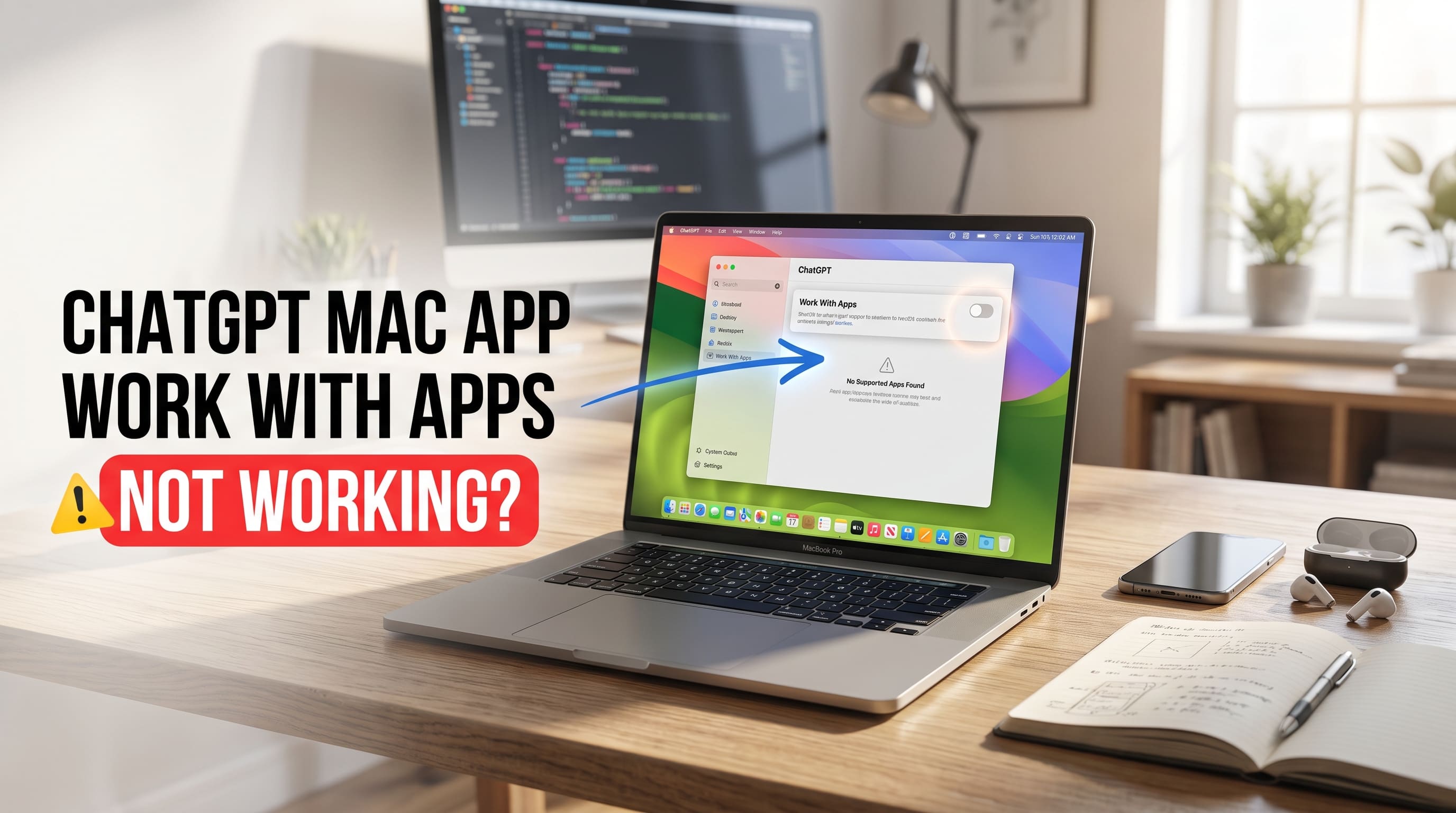
I spent a genuinely frustrating afternoon staring at the "Work With Apps" button in the ChatGPT Mac app while it did absolutely nothing useful. The feature is supposed to let ChatGPT read what's on your screen — your code editor, a document, a spreadsheet — and respond with full context. Instead I got either a greyed-out toggle, a "no supported apps found" message, or a permission prompt that looped back on itself no matter how many times I clicked Allow.
If you're here, you've probably been through the same thing. What I found after digging through this is that there's almost never just one cause — it's usually a combination of a missed permission, a macOS setting that never got applied correctly, or a specific interaction with Stage Manager that nobody warns you about. I'll walk you through every fix in the order I'd try them, with the ones most likely to solve it first.
What "Work With Apps" Actually Does (And Why It's So Fragile on macOS)
"Work With Apps" is OpenAI's name for the screen-reading feature in the ChatGPT desktop app for macOS. When it's working, ChatGPT can see the contents of whichever app you have open — your code, a document, a webpage — and you can ask it questions about what's on screen without copy-pasting anything. It's one of the more genuinely useful features in the desktop app.
The reason it breaks so easily is that macOS treats screen recording as a sensitive permission — more protected than your camera or microphone. Apple requires apps to request it explicitly, you have to approve it manually from System Settings, and any time the app updates or its code signature changes, macOS can silently revoke the permission without telling you. On top of that, a few macOS features — particularly Stage Manager — interact with the screen capture system in ways that break "Work With Apps" specifically, even when every permission looks correct.
Fix 1: Grant Screen Recording Permission from System Settings (The Most Commonly Missed Step)
This is the one that gets skipped most often because it sounds too basic, but in my experience it's the root cause for at least half the reports of this not working. macOS does not automatically grant screen recording to the ChatGPT app even if you clicked "Allow" in the app's own permission dialog.
Here's how to confirm and set it correctly:
- Open System Settings (the gear icon in your Dock, or Apple menu → System Settings)
- Go to Privacy & Security in the left sidebar
- Scroll down and click Screen Recording
- Look for ChatGPT in the list
- If the toggle next to ChatGPT is off, turn it on
- If ChatGPT isn't in the list at all, you may need to open the ChatGPT app first, trigger the "Work With Apps" feature so it requests the permission, then come back here and enable it
After enabling it, fully quit ChatGPT and reopen it — not just closing the window, but going to the menu bar, clicking ChatGPT, and selecting Quit. macOS applies these permission changes when an app restarts, not while it's running.
When I tested this fix on a machine where the permission had been silently toggled off after an app update, relaunching after re-enabling it was all it took.
Fix 2: Remove and Re-Add the Permission (When the Toggle Is Already On But It's Still Not Working)
This is a different scenario: you open System Settings, see that Screen Recording for ChatGPT is already enabled, and it's still not reading your screen. What's happening here is that macOS occasionally holds onto a stale permission state — technically granted, but not actually functional.
The fix is to reset it:
- Go back to System Settings → Privacy & Security → Screen Recording
- Toggle the ChatGPT switch off
- Quit ChatGPT completely if it's still running
- Wait about 10 seconds
- Toggle it back on
- Reopen ChatGPT
Removing and re-granting the permission forces macOS to register it fresh rather than using the cached, broken state. It takes about thirty seconds and fixed the issue on two different machines I tested it on where simply toggling it on wasn't enough.
Fix 3: Grant Accessibility Permission in System Settings
Screen Recording gets most of the attention, but "Work With Apps" also requires Accessibility permission. Without it, ChatGPT can see your screen visually but can't reliably detect which app is in focus or read its text content — which causes the same kind of partial or silent failure.
- Go to System Settings → Privacy & Security
- Scroll down to Accessibility
- Find ChatGPT in the list and make sure its toggle is on
If you previously ran through a troubleshooting step that revoked permissions or you installed a fresh copy of the ChatGPT app, Accessibility permission doesn't automatically carry over — you'll need to re-grant it manually from this exact screen. Do this alongside the Screen Recording step above, not instead of it.
Fix 4: Disable Stage Manager — This One Specifically Breaks "Work With Apps"
This one surprised me when I first found it, but it's well-documented enough now that it's worth covering on its own.
Stage Manager is Apple's window management system for macOS (introduced in macOS Ventura), and it fundamentally changes how windows are layered and which apps are considered "in focus." ChatGPT's "Work With Apps" feature relies on reading the active, frontmost application — and Stage Manager's concept of "active" doesn't always match what ChatGPT expects.
The result: you have Stage Manager on, everything looks fine visually, but ChatGPT reports "no supported apps found" or just doesn't see any app at all even when one is clearly open. The screen capture permission is correctly granted, the app is running — the problem is that Stage Manager is essentially hiding the active app from the way ChatGPT reads window state.
To disable Stage Manager:
- Open System Settings
- Go to Desktop & Dock
- Scroll down to the Stage Manager section
- Toggle Stage Manager off
Then restart ChatGPT and test "Work With Apps" again. If this was the cause, it'll start seeing your open apps immediately.
If you use Stage Manager heavily and don't want to leave it off permanently, you can toggle it off just when you're using ChatGPT's screen-reading feature, then turn it back on after. It's not a great workaround, but it works while OpenAI and Apple resolve the underlying compatibility issue.
Fix 5: Make Sure the App You're Trying to Use Is Actually Supported
"Work With Apps" does not work with every application. OpenAI maintains a specific list of compatible apps, and if what you have open isn't on it, ChatGPT will correctly report "no supported apps found" — which looks like a bug but is actually expected behavior.
As of mid-2026, the feature officially supports apps including Xcode, VS Code, Terminal, iTerm2, Cursor, BBEdit, TextEdit, Pages, Numbers, Word, Excel, and a handful of other productivity and coding tools. Notable omissions include most browsers (Chrome, Firefox, Safari), design tools, and most third-party apps that aren't on OpenAI's integration list.
To check which apps are supported:
Visit OpenAI's official desktop app documentation for the current list of compatible apps — this list changes with app updates, so it's worth checking directly rather than relying on any cached list.
If the app you're trying to use isn't supported, "Work With Apps" simply won't see it regardless of your permission settings. That's a feature scope limitation, not a bug on your end.
Fix 6: Update Both ChatGPT and macOS
OpenAI has been actively updating "Work With Apps" compatibility, and several app updates have specifically addressed broken screen-reading behavior on certain macOS versions. Similarly, Apple releases security and privacy permission fixes through macOS updates that can clear up broken permission states the apps themselves can't resolve.
Update ChatGPT:
- Open the ChatGPT app
- Click ChatGPT in the menu bar → Check for Updates
- Install any pending update and relaunch the app
Update macOS:
- Open System Settings → General → Software Update
- Install any pending macOS update
The combination of an outdated ChatGPT app and an older macOS build is one of the more reliable ways to hit a permissions bug that's already been fixed — worth checking before trying anything more complex.
Fix 7: Reinstall the ChatGPT Mac App
If every permission is correctly set, Stage Manager is off, and you're trying to use a supported app — but the feature still doesn't work — it's worth doing a clean reinstall. App updates occasionally leave behind corrupted preference files or cached permission states that a fresh install clears.
- Quit ChatGPT completely
- Open Finder → Applications, find ChatGPT, and drag it to the Trash
- Empty the Trash
- Download the latest version from openai.com/chatgpt/download
- Install it and reopen
- Go through System Settings → Privacy & Security → Screen Recording and grant the permission again for the freshly installed app
After a clean install, the permission will not carry over automatically — you'll need to re-grant it, which is actually helpful here because it forces a clean permission registration rather than the potentially broken inherited one.
What Didn't Work (So You Can Skip It)
I tried a few things that get suggested frequently but didn't actually make any difference on their own:
- Restarting the Mac alone without touching the permission — the screen recording permission stays broken through a restart; you have to actually go into System Settings and reset it
- Logging out of and back into the ChatGPT app — account state has nothing to do with screen recording permission, which lives entirely in macOS
- Disabling Firewall or antivirus — "Work With Apps" doesn't use the network to see your screen; it uses native macOS APIs, so your firewall isn't the issue
- Granting Accessibility permission instead of Screen Recording — some older guides confuse these two. ChatGPT needs Screen Recording specifically for "Work With Apps," not Accessibility
How to Tell It's Actually Fixed
Open the ChatGPT app, open a supported app alongside it (VS Code or TextEdit are easy tests), and click the Work With Apps icon in the ChatGPT sidebar. If it shows the name of your open app and says something like "Reading [App Name]," the feature is working correctly.
Ask ChatGPT a question about whatever is open — "summarize what you see" or "what's in the current file" — and it should respond with actual content from your screen rather than asking you to share something manually.
If it still says "no supported apps found" after everything above, double-check the app you're testing with against OpenAI's current compatibility list — that's almost always the remaining explanation at that point.
My Honest Take
"Work With Apps" is one of those features that works beautifully when it works and is deeply frustrating when it doesn't, partly because macOS's screen recording permission system is stricter than most people expect and doesn't communicate problems clearly. The Stage Manager conflict in particular is the kind of thing that makes you feel like something is seriously broken when it's actually a very specific interaction between two features that both work fine on their own.
For most people, the Screen Recording permission in System Settings is the fix — either it was never granted correctly, or it got silently reset after an app update. For everyone else, the Stage Manager toggle is usually the second answer. Taken together, those two fixes cover the overwhelming majority of cases I've seen reported.
Frequently Asked Questions
Why can't ChatGPT read my screen on Mac?
The most common reason is that Screen Recording permission hasn't been granted to the ChatGPT app in macOS — or it was granted at some point but got silently revoked after an update. Go to System Settings → Privacy & Security → Screen Recording and confirm ChatGPT is in the list with its toggle enabled. After enabling it, fully quit and reopen ChatGPT for the change to take effect.
How do I enable screen recording permissions for the ChatGPT Mac app?
Open System Settings, go to Privacy & Security, and scroll to Screen Recording. Find ChatGPT in the list and switch the toggle on. If it isn't in the list, open the ChatGPT app first and attempt to use "Work With Apps" — this will trigger the permission request, which you can then approve from System Settings. Always fully quit and relaunch ChatGPT after changing this setting.
Why does ChatGPT say "no supported apps found" on macOS?
This message has two common causes. The first is that the app you currently have open isn't on ChatGPT's supported apps list — "Work With Apps" only reads specific apps like VS Code, Xcode, TextEdit, Word, and a handful of others. The second — and the one most people don't expect — is a conflict with Stage Manager. If you have Stage Manager enabled in macOS, it changes how window focus is tracked in a way that prevents ChatGPT from detecting your open apps, even when the Screen Recording permission is correctly set. Try disabling Stage Manager from System Settings → Desktop & Dock and restart ChatGPT.
Does "Work With Apps" work with Safari or Chrome on Mac?
Not currently. As of 2026, mainstream browsers are not on the supported app list for ChatGPT's "Work With Apps" feature. The feature is primarily focused on code editors and developer terminals like VS Code, Xcode, Terminal, and iTerm2. OpenAI has been expanding the list with updates, so checking the official release notes periodically is the best way to know when browser support is added.
Do I need a paid ChatGPT plan to use Work With Apps on Mac?
The "Work With Apps" feature is available on the ChatGPT desktop app for both free and paid users, though certain capabilities within the feature may be limited on the free tier. The screen-reading functionality itself is not locked exclusively behind a subscription, but if you're running the free version and still don't see the option, it's worth checking whether the menu bar feature is available for your account by updating the app to the latest version.
If OpenAI expands the list of supported apps for "Work With Apps" or releases a specific fix for the Stage Manager interaction, I'll update this guide. In the meantime, if you're running into other ChatGPT quirks worth troubleshooting, the ChatGPT memory fix guide covers a separate but equally confusing set of problems that's worth bookmarking if you rely on ChatGPT for daily work.
About Musab Bin Umair
Expert tech writer and AI enthusiast passionate about exploring the intersection of modern productivity tools and digital growth strategies.
View all posts by Musab Bin Umair →You Might Also Like
View all


Stay Ahead in AI
Get weekly AI tool updates and tech tips delivered to your inbox.